Automations & Workflows: building and managing workflows
Last updated: July 20, 2026
Workflows turn your CRED data into automatic actions. You choose the companies or people to watch (When Data Series), set the condition they must meet (Matches Criteria), and pick what happens next (Do this). Once it's on, the workflow runs on its own — no manual steps.
Common uses:
When a company grows past a size you set (like revenue or team size), add it to a list and let your team know.
When something you track about a company changes, send the update to your CRM.
When news breaks about a company or topic you're watching (a web alert), add the companies to a list and notify the team.
On a set schedule, export a chosen set of companies or people to a file.
Where to find Automations
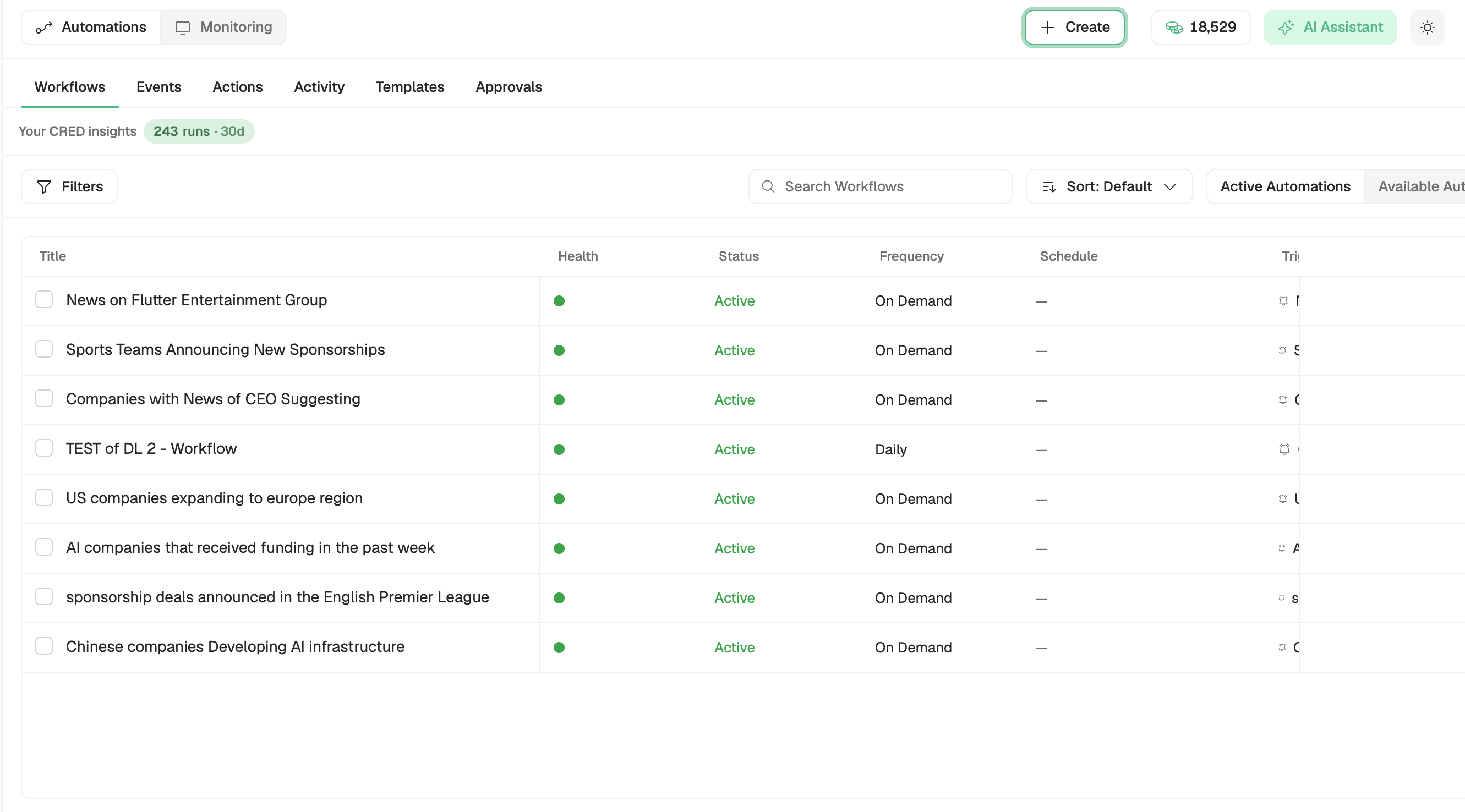
Open Automation from your workspace navigation. The Automation hub has these tabs:
Workflows — your automations (this is the default tab).
Templates — pre-built workflows you can clone and customize.
Events — the reusable triggers your workflows can watch.
Actions — the reusable actions your workflows can run.
Activity — a history of workflow runs.
Approvals — steps waiting for someone to approve (when a workflow uses a human-approval step).
How a workflow is built
Every workflow has three parts:
When Data Series — the companies or people the workflow watches. Pick a list (or other data series) of companies or people — or switch to Web Alert to watch the web instead.
Matches Criteria — the condition that has to be true for the workflow to act, for example “Headcount increase >10%”.
Do this — the action(s) that run when there’s a match, such as adding to a list, notifying your team, or updating your CRM.
Creating a workflow
From the Automation hub, click + Create → Create Workflow. You'll be offered two ways to start:
Option A — Start from a template
Choose a template that's close to what you want (for example, "Saved Search → Add to List" or "Saved Search → Sync to CRM").
The template opens pre-filled in the builder.
Adjust the data series, criteria, and action to fit your case, then save.
You can also browse everything under the Templates tab.
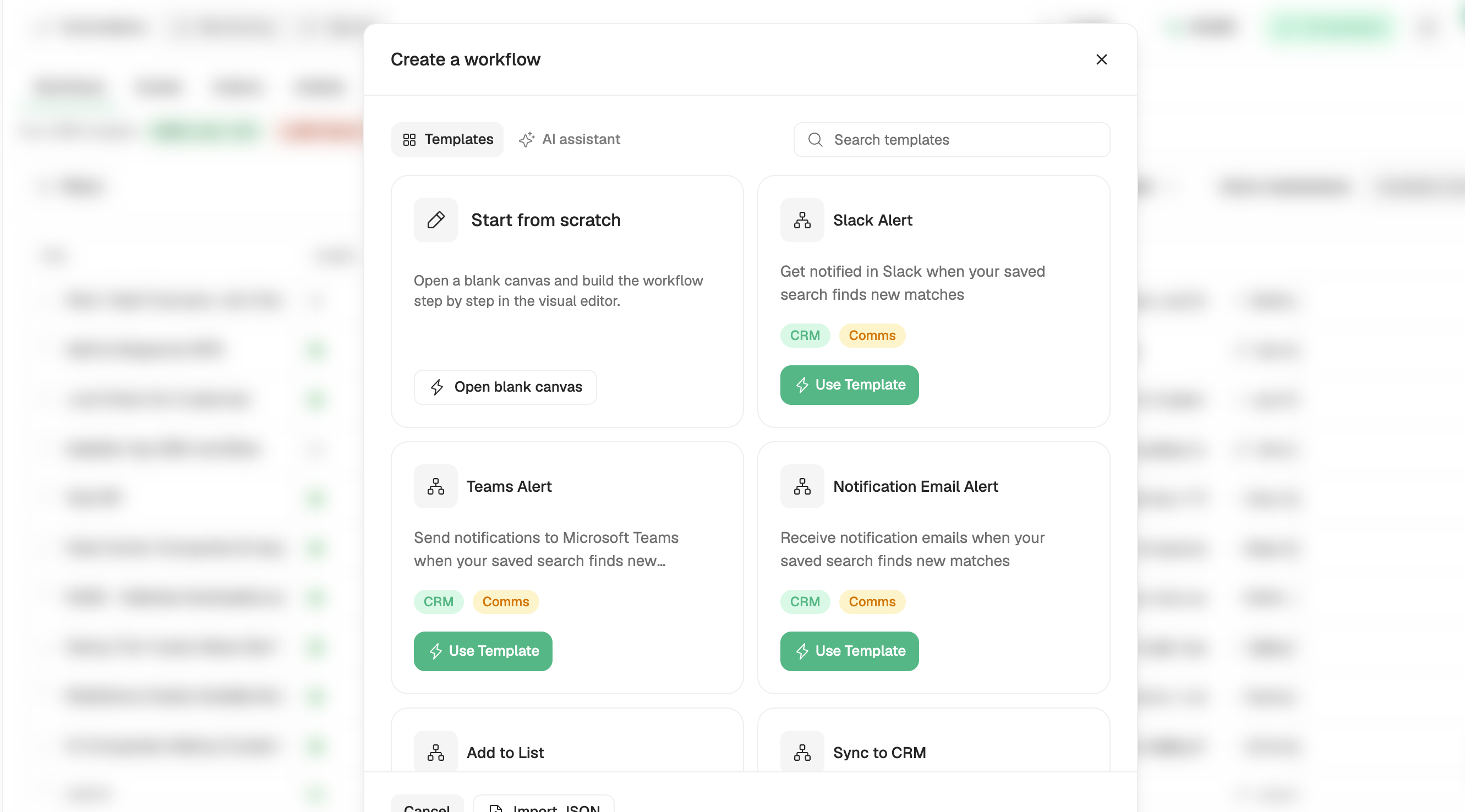
Option B — Start from scratch
Choose Start from blank to open an empty builder.
Choose the source — at the top of the builder, use the Data Series / Web Alert toggle to pick what the workflow is based on. Select Data Series to build on your CRED data (a list, or the companies or people you want to watch), or Web Alert to monitor the web — you enter a search query instead of choosing a data series.
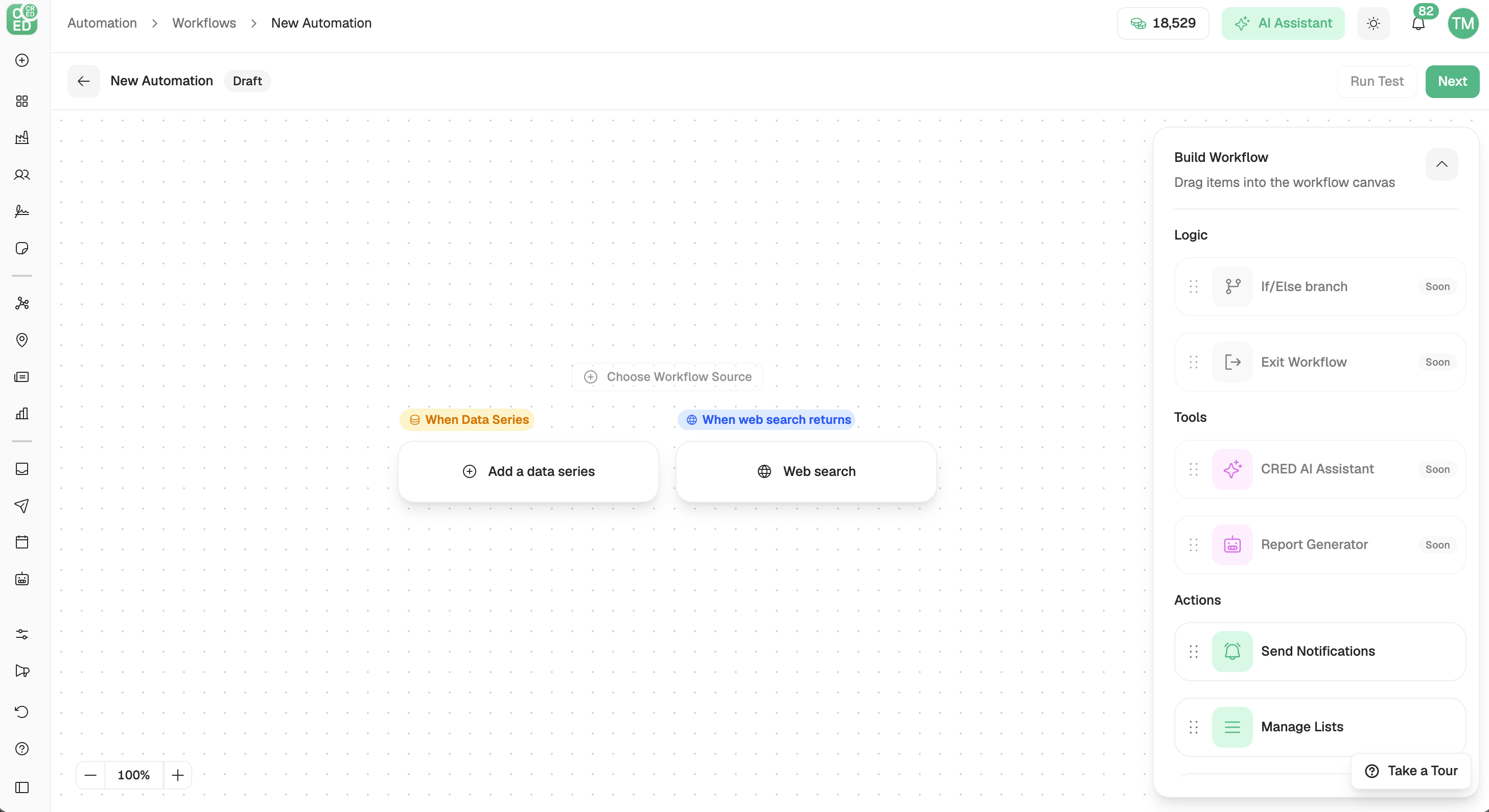
Set what to watch — in the When Data Series card, click Change to pick the list (or other data series) of companies or people. (If you chose Web Alert, enter a search query instead.)
Set the condition — in the Matches Criteria card, click Add criteria and choose a condition (for example, “Headcount increase >10%”), or Create Criteria to define your own.
Add the action — in the Do this card, click Add an action and set it up (for example, add to a list, or notify your team).
What actions can do
Actions are the "what happens" step. Depending on your workspace, available actions include:
Send a notification — alert people in-app or by email.
Add to a list — add matching companies or people to a list automatically.
Sync to CRM — push updates to your connected CRM.
Export to file — export the companies or people it finds.
Enrich — add extra data to the companies or people it finds.
Add to a sequence — add people to an outreach sequence.
Some actions appear with a Soon badge — those are on the roadmap and can't be used yet.
Testing and turning it on
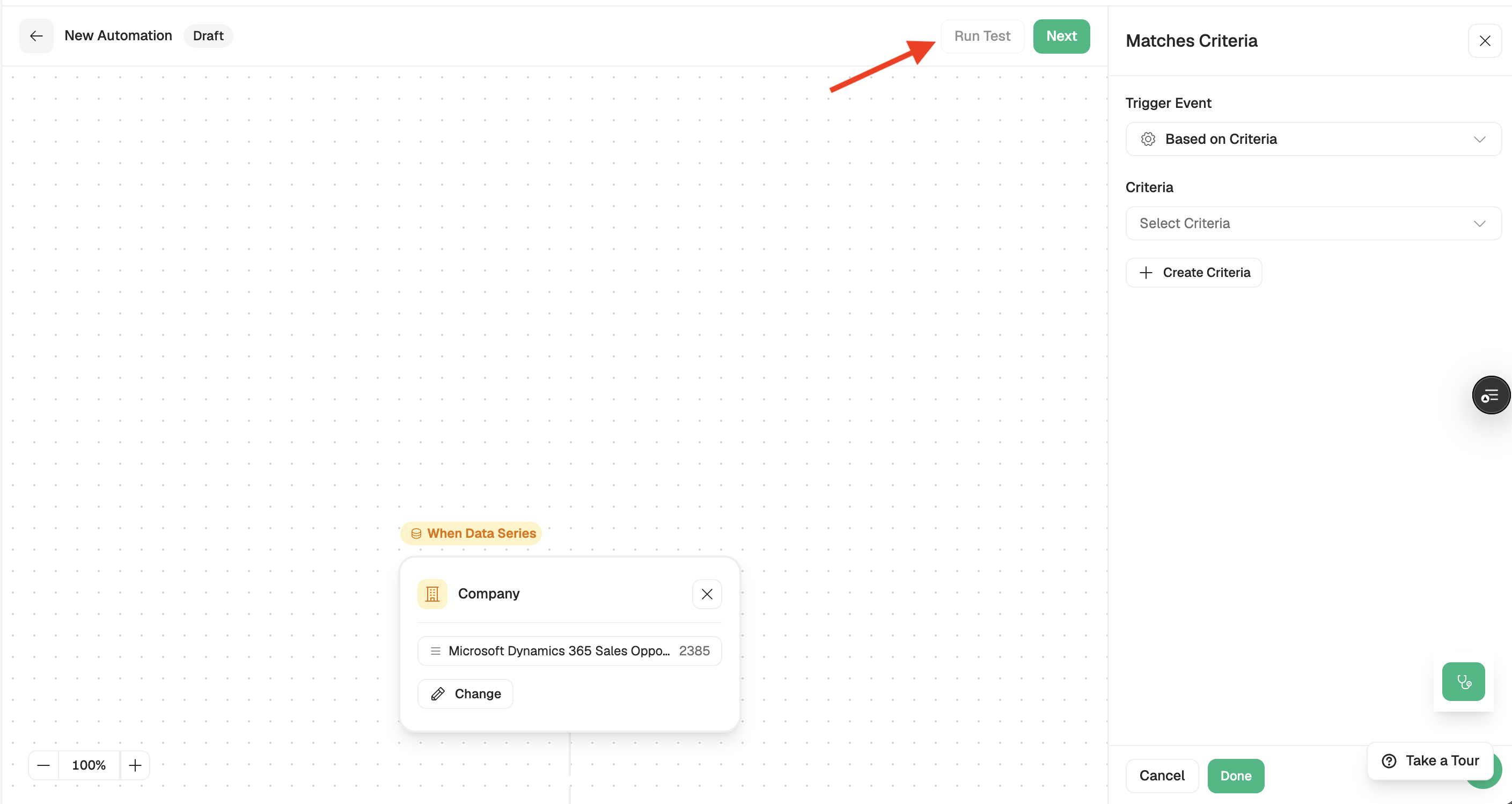
Use Run Test in the builder to preview which companies or people currently match, before the workflow does anything.
Save the workflow.
Set it to Enabled so it starts running. You can pause it any time.
Managing your workflows
On the Workflows tab you can:
See each workflow's status (Enabled / Disabled) and open it to edit.
Pause or enable workflows — including pausing several at once.
Review runs on the Activity tab.
Handle any steps awaiting sign-off on the Approvals tab.
Alerts are workflows too
News and web Alerts are a type of workflow — each alert runs on the same engine. You can create simple alerts on the Alerts page and, when you need more, open them in the full Workflow builder. See the News Alerts article for setting those up.