Brand Interactions: Detect fans that are also decision makers
Last updated: July 20, 2026
Brand Interactions turns brand engagement into real people you can act on—bringing interaction data directly into the CRED platform so you can build audiences based on the brands your customers care about.
Getting Started
Access Brand Interactions
Log into the CRED platform
From the homepage, navigate to the People screen
This is where all audience building begins.
How to Use
Build an Audience Using Brand Interactions
On the People screen, open Filters
Select Brand Interaction
Choose one or more brands (for example, TechCrunch or Google)
Click Get Interaction Data
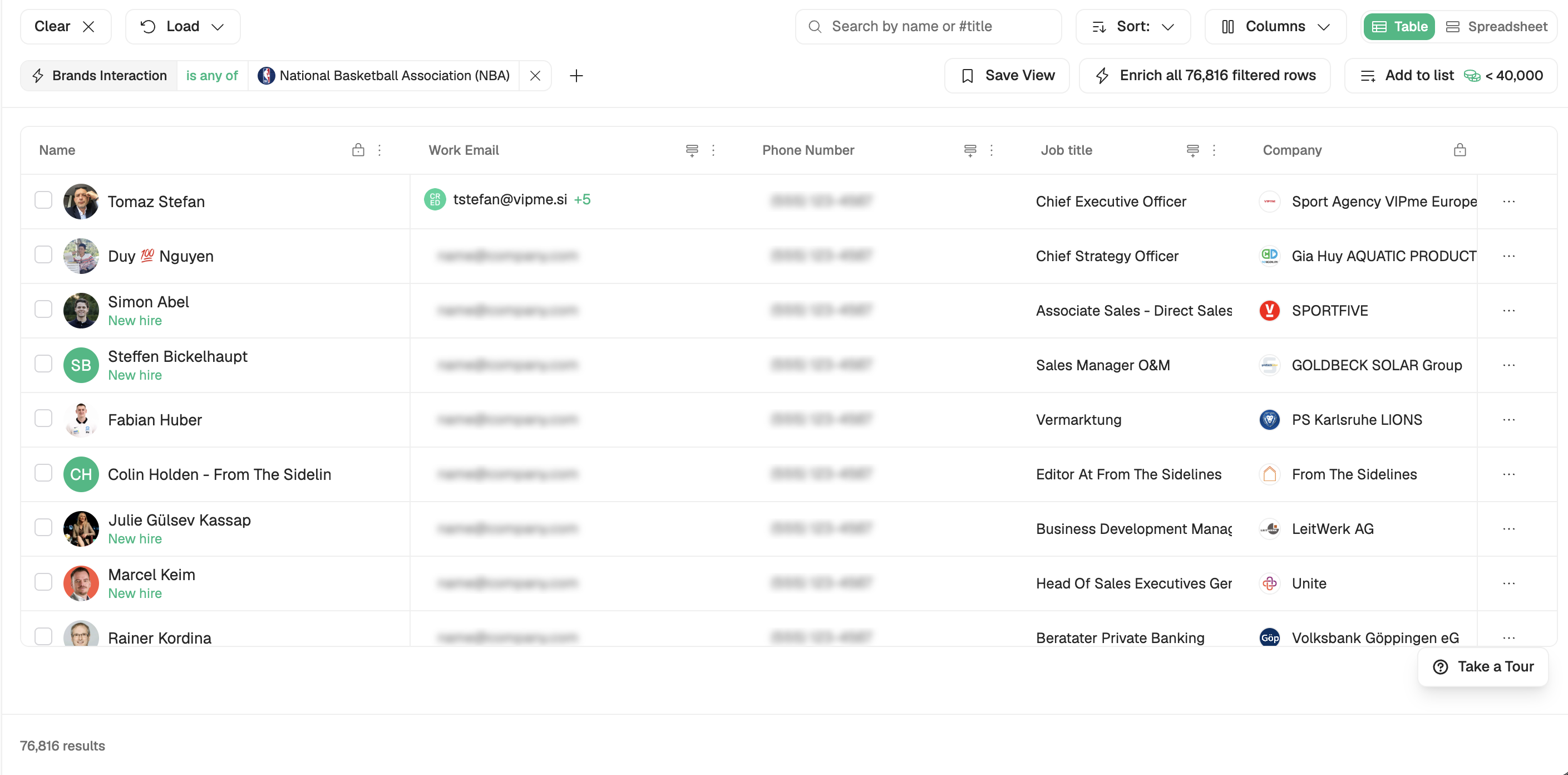
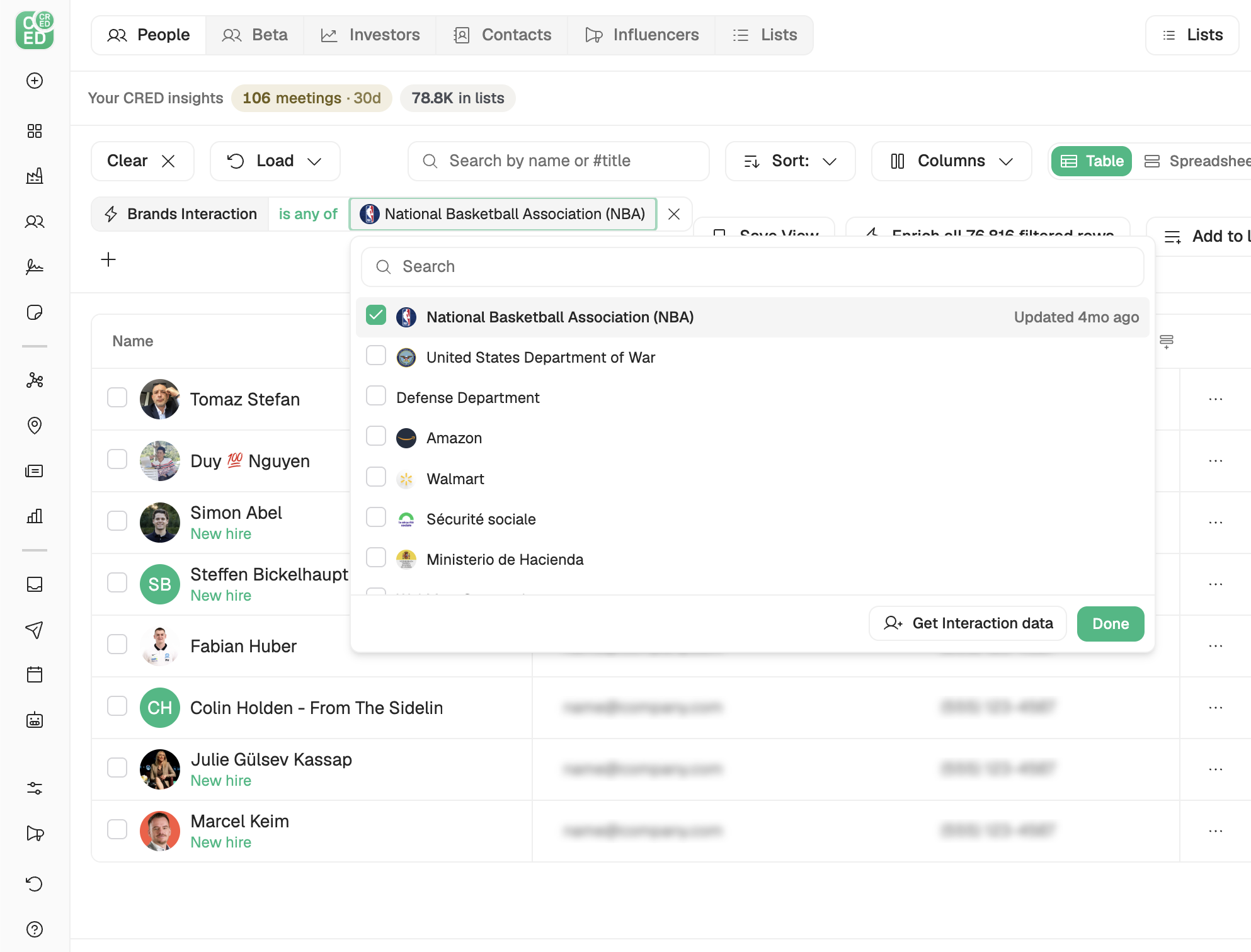
Configure Interaction Data
When prompted:
Set a Time Limit (how far back to scan brand posts)
Set a People Count (number of unique people to return)
Posts are scanned from newest to oldest until one of the limits is reached.
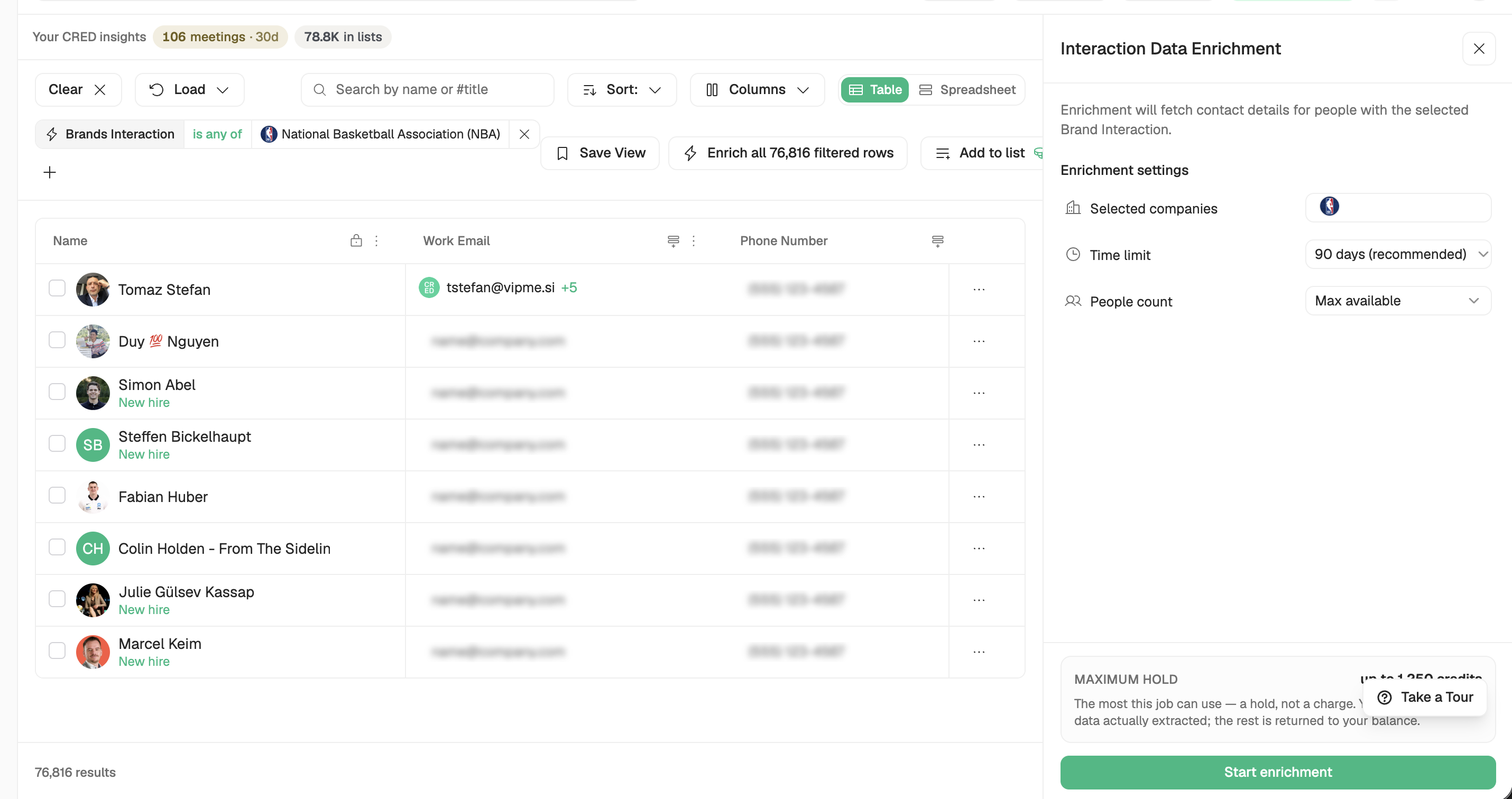
Launch the Job
Click Launch Job
The job runs asynchronously—you don’t need to stay on the page
You’ll receive an email once the audience is ready
Click View Results in Dashboard to see the audience on the People page.
Build an Audience from a Specific Post
Want the people who engaged with one specific post rather than a whole brand? Use the Post Interactions filter.
On the People screen, open Filters and select Post Interactions
Click Get Interaction Data to open the Scrape post engagers panel
Paste one or more LinkedIn post URLs and choose the brand they belong to
Click Scrape posts
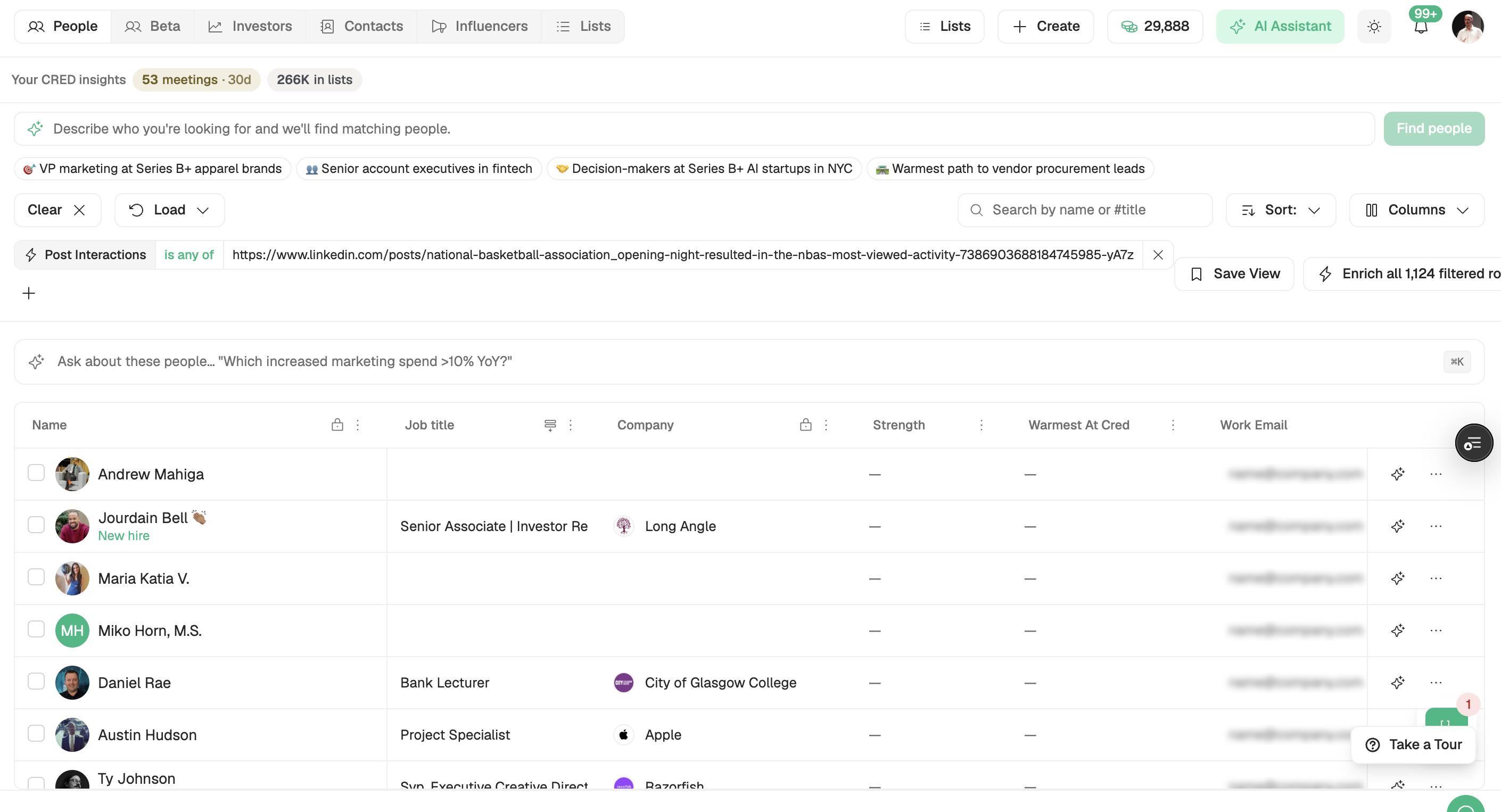
Each post is processed independently, and the people who liked or commented are added to your audience. You’ll receive an email when the data is ready.
Viewing Your Results
Once a job finishes, the data appears on the People screen.
Brand Interactions column
Each person row shows the brands they’ve engaged with in the Brand Interactions column.
Click a cell to open the details — per brand: the totals (reactions, comments, and mentions), the first and last interaction dates, and a drill-down into the actual comments and posts.
Filter the list
Use the Brand Interaction filter to show only people who engaged with a specific brand.
Use the Post Interactions filter to show only people who engaged with a specific post (by LinkedIn post URL).
Person sidebar
Open any person to see a Brand Interactions section in their sidebar, with the same breakdown. From a details panel you can also click View all to jump straight there.
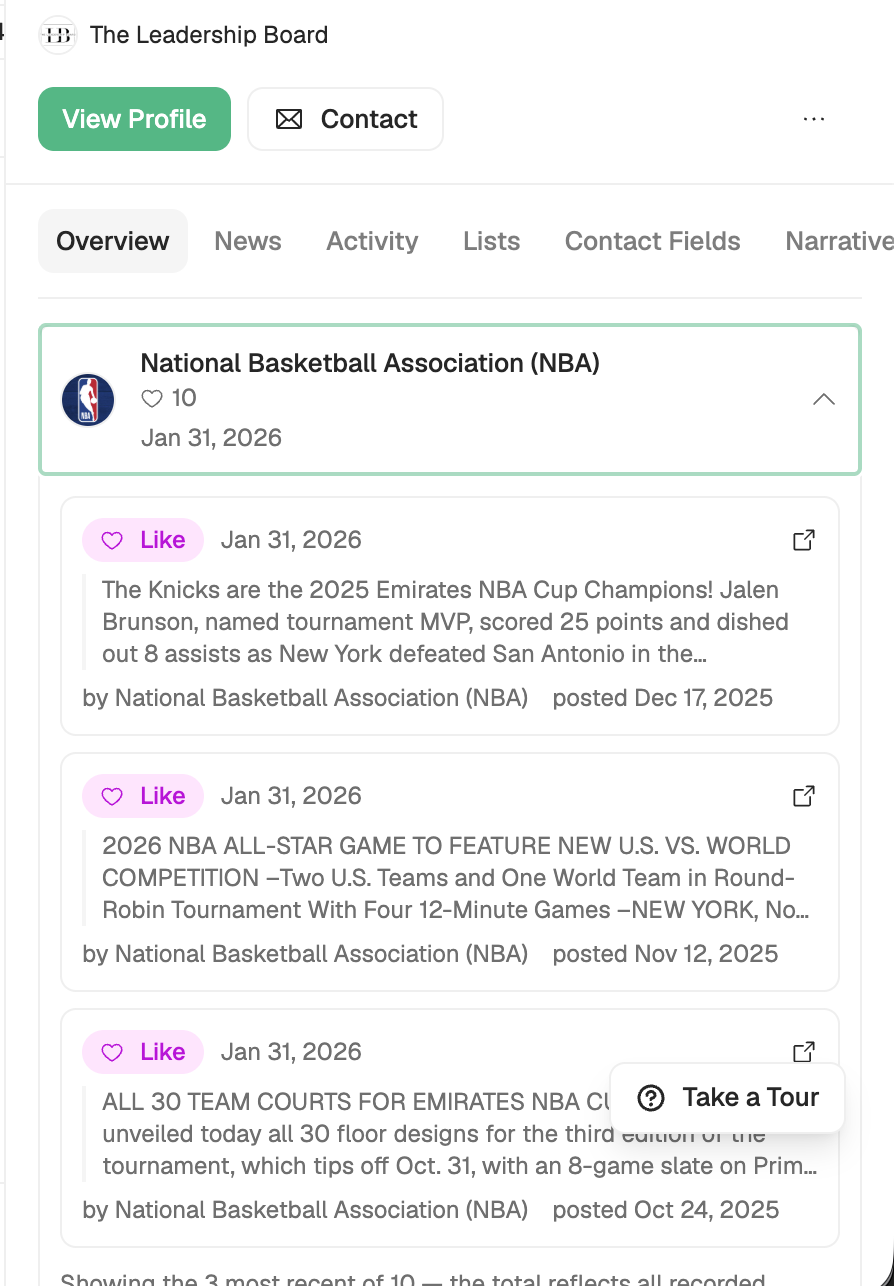
Act on the results
Select one or more brands in the details panel to:
Add to List — save the selected companies to a list.
Export — download a CSV with the full detail (person, brand, totals, dates, and each comment/post).
View Company — open the company’s profile.
What You Can Do
✅ Build audiences based on brand engagement
✅ Identify real people interacting with brands you care about
✅ Control recency and audience size
✅ Run interaction jobs asynchronously
✅ Activate results directly from the People page
✅ Target the people who engaged with a specific post
Limitations / Notes
Results depend on available brand interaction data
Larger time ranges or people counts may take longer to process
Ensure selected brands are relevant to avoid noisy audiences
Need Help?
For urgent issues → raise a ticket using the standard support process.