CRED Single Sign-On: Okta Setup Guide
Last updated: January 16, 2026
Introduction
This guide explains how to enable and use Okta Single Sign-On (SSO) for CRED. With Okta SSO, your users sign in using their organization’s existing Okta credentials.
After authenticating in Okta, users are securely redirected back to CRED and signed in.
Intended audiences:
Customer Administrators: Configure and verify the Okta integration
End Users: Sign in via Okta once your administrator completes setup
Administrator Setup
The following are the pre-reqs and security practices for Company Administrators responsible for configuring identity and access.
Prerequisites
Company Admin access to your organization’s CRED Commercial Web account
Admin access to your organization’s Okta tenant
Okta application credentials:
Client ID
Client Secret
Issuer (URL)
Tenant Code / SSO ID (as used by your organization)
The Redirect/Callback URL shown on the CRED Okta configuration page added to your Okta app’s allowed redirect URLs
Configure Okta in CRED
Sign in to CRED Commercial Web as a Company Admin.
Go to My Account (profile icon) → Workspace Integrations.
Select Authentication → Okta → Configure.
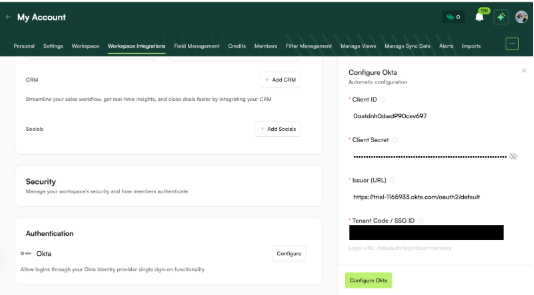
Enter the following values exactly as provided by your Okta application:
Client ID
Client Secret
Issuer (URL)
Tenant Code / SSO ID
Review the Callback/Redirect URL displayed in CRED and add it to the Allowed Redirect URLs in your Okta application settings.
Select Configure Okta to save.
Verify the Configuration (Administrator Test)
Perform these checks to confirm SSO is working before notifying users:
In Okta, assign a test user (or group) to the CRED application.
Open a private/incognito browser window.
Go to the CRED Commercial Web login page and confirm the Sign in with Okta button appears.
Select Sign in with Okta and authenticate with your Okta test user (complete MFA if prompted).
Confirm you are redirected back to CRED and signed in successfully.
Sign out and repeat with a user not assigned to the app to confirm access is correctly blocked.
Optionally test on multiple browsers and devices to ensure a consistent experience.
Troubleshooting & Support
Sign in with Okta button is missing
Confirm you saved the configuration in Workspace Integrations.
Refresh the login page or clear cache. Try an incognito window.
Ensure your user is assigned to the CRED app in Okta.
invalid_client or authentication failed
Re-enter the Client ID and Client Secret. Ensure there are no extra spaces.
Rotate the Client Secret in Okta and update it in CRED if needed.
issuer mismatch or configuration error
Verify the Issuer (URL) matches your Okta domain or authorization server (HTTPS, correct path).
redirect_uri mismatch
Add the exact Callback/Redirect URL shown in CRED to your Okta app’s allowed redirect/sign-in redirect URIs.
401/403 after redirect
Ensure the user is assigned to the CRED app in Okta.
Check group-based access policies in Okta.
Repeated login loop
Clear browser cookies for your Okta domain and CRED.
Try a different browser or incognito session.
Support channels:
Your organization’s IT team or identity administrator
Your CRED account team or in Slack/Teams
User Login Experience
For end users who access CRED via Okta.
What You Need
An active Okta account from your organization
Access to the CRED application assigned by your administrator
Sign In with Okta
Go to the CRED Commercial Web login page.
Select Sign in with Okta.
Enter your Okta username and password, then complete MFA if prompted.
After successful authentication, you are automatically redirected back and signed in to CRED.
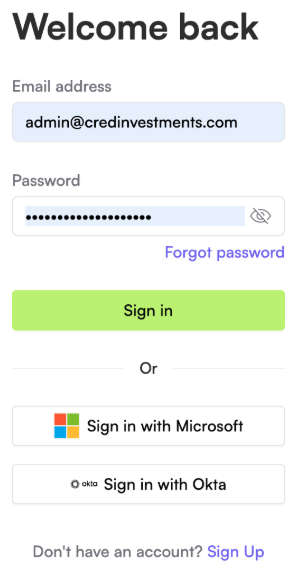
If you do not see the Sign in with Okta button, contact your administrator.
Glossary
Company Admin: A user role in CRED authorized to manage organization-wide settings, including SSO.
Workspace Integrations: The CRED settings area where administrators connect third-party services such as Okta.
Okta Tenant: Your organization’s dedicated Okta environment (for example, your-domain.okta.com).
Client ID: Public identifier for the Okta OAuth/OIDC application used by CRED.
Client Secret: Confidential secret for the Okta application; used by CRED to authenticate with Okta.
Issuer (URL): The base URL of your Okta authorization server that issues tokens (HTTPS).
Tenant Code / SSO ID: An organization-specific identifier used by CRED to route your users to the correct SSO configuration.
Redirect/Callback URL: The URL to which Okta sends users back after authentication; must be allowed in your Okta app settings.
MFA (Multi-Factor Authentication): An additional verification step (for example, OTP, authenticator app) to enhance security.
SSO (Single Sign-On): Authentication method allowing users to access multiple applications with one set of credentials.