CRM Integration Technical Process - HubSpot
Last updated: July 31, 2026
Overview
This article covers the technical setup and sync behaviour specific to HubSpot. For general CRM integration concepts — including field management, data matching, syncing rules, and troubleshooting — see .
CRED's HubSpot integration provides bidirectional sync of Accounts, Contacts, and Opportunities (Deals), plus one-way import of HubSpot Pipelines, Deal Stages, and Users. Additional entity support (notes, tasks, calls, emails, line items, custom objects) is on the roadmap.
All data is processed within CRED's secure, SOC 2-compliant infrastructure. Data residency depends on your workspace configuration — contact your CRED representative to confirm your hosting region.
CRED supports compliance with major data protection frameworks including GDPR (EU), SOC 2, and other applicable regulations.
Setup time depends on data volume, entity type, and your HubSpot plan tier. Larger datasets take longer because HubSpot applies its own API rate limits. Contact your CRED representative for a scoped estimate before a large migration.
Supported Entities
The following entities are supported by the HubSpot integration. Import (HubSpot → CRED) and Export (CRED → HubSpot) availability varies by entity type.
CRED Entity | HubSpot Object | Import (HS → CRED) | Export (CRED → HS) |
|---|---|---|---|
Account | companies | Yes | Yes |
Contact | contacts | Yes | Yes |
Opportunity | deals | Yes | Yes |
Opportunity Pipeline | pipelines | Yes | No |
Opportunity Stage | stages | Yes | No |
Remote User | users | Yes | No |
Note: Pipelines, Deal Stages, and Users are read-only — HubSpot manages them and CRED does not write back.
Notes, tasks, calls, emails, line items, and HubSpot custom objects are not currently synced. Roadmap items — check with your CRED representative for the latest timeline.
How to Connect HubSpot
Step 1: Access Workspace Integrations
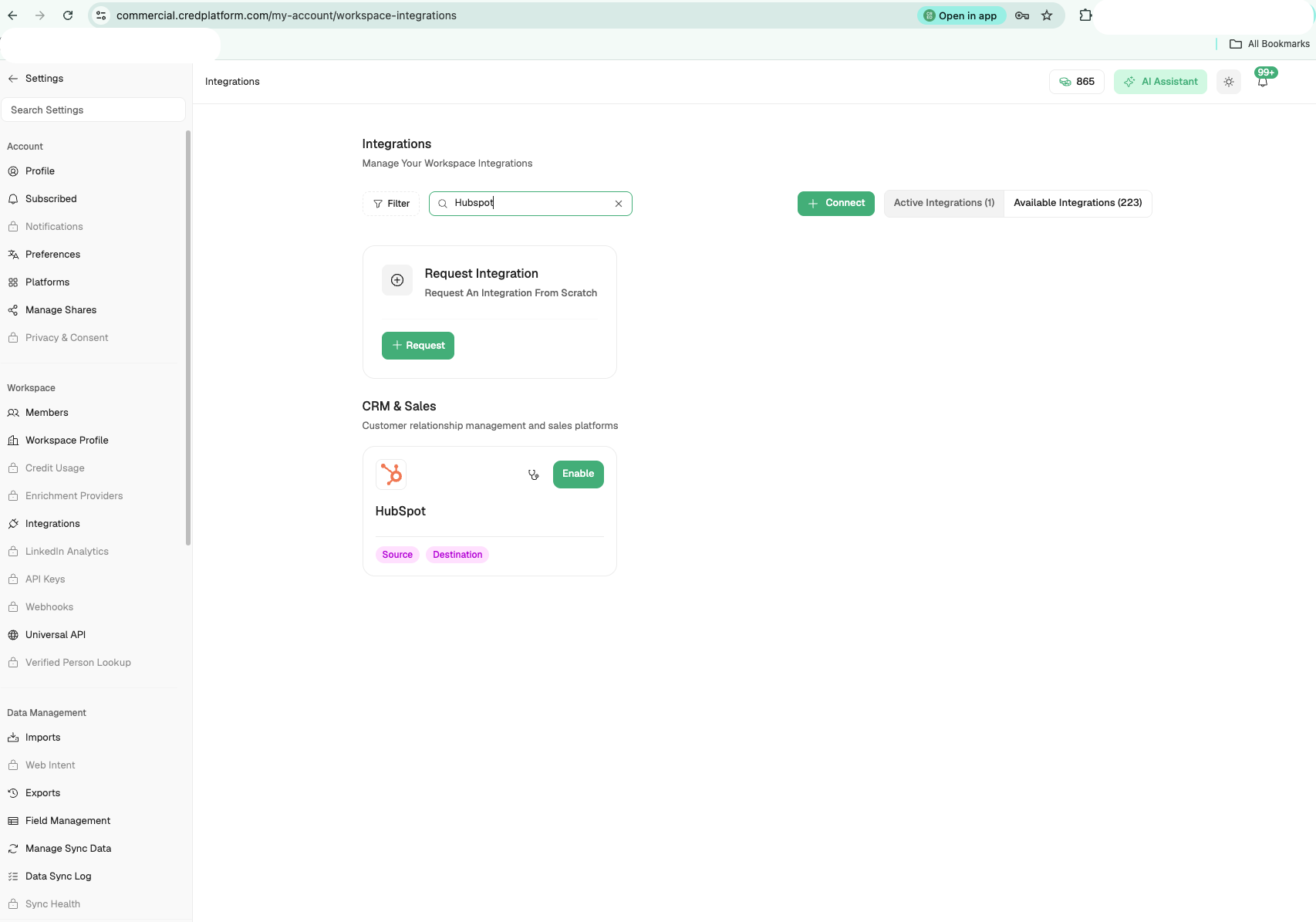
Navigate to My Account → Workspace Integrations or go directly to:
https://commercial.credplatform.com/my-account/workspace-integrations
Find HubSpot under the CRM category and click Connect.
Step 2: Authenticate
A confirmation modal appears with a single Login with Hubspot option. Click Continue to be redirected to HubSpot's consent screen.

HubSpot will list the OAuth scopes CRED requires:
oauthcrm.objects.companies.read,crm.objects.companies.writecrm.objects.contacts.read,crm.objects.contacts.writecrm.objects.deals.read,crm.objects.deals.writecrm.objects.users.read— enables user/owner mapping between CRED and HubSpotcrm.objects.custom.read,crm.objects.custom.writecrm.schemas.contacts.read,crm.schemas.companies.read,crm.schemas.deals.read
All requested scopes are required for the integration to function; CRED does not currently expose optional scope toggles. Authenticate with the HubSpot account that should authorize the connection.
Tip: Use a shared service account rather than an individual user account so the connection isn't tied to a single team member.
Step 3: Initial Data Sync
After authenticating, you'll be returned to CRED. The initial sync begins automatically.
A progress indicator appears in the sidebar showing read status and percentage complete
Click Start Configuring to open the Integration Wizard, or access it later via Settings on the HubSpot tile|
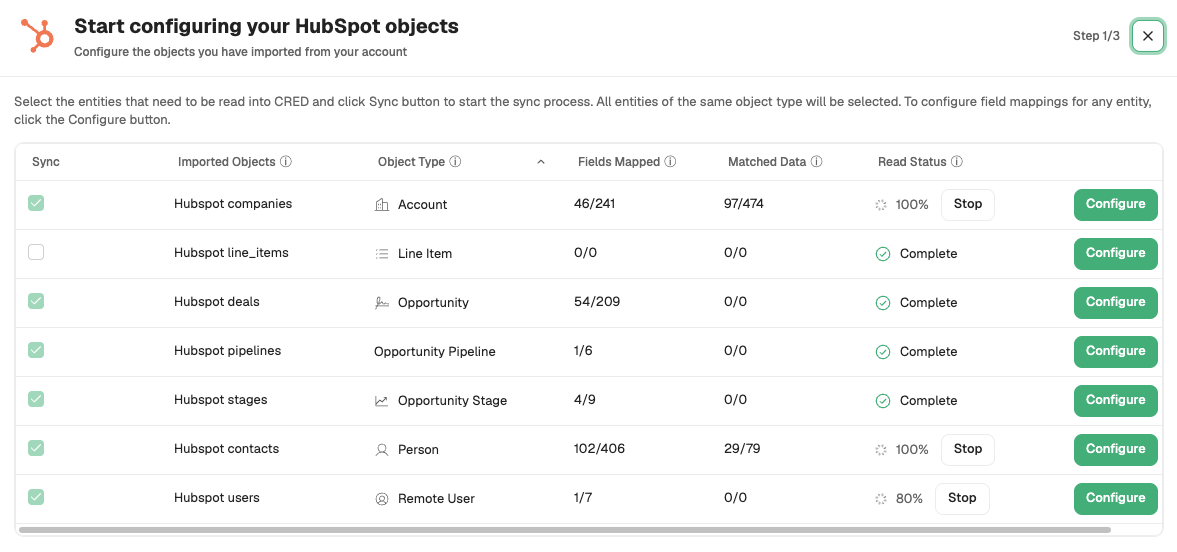
The initial sync runs tier by tier — Pipelines, Deal Stages, and Users first, then Accounts and Contacts, then Opportunities — so downstream records have the reference data they need.
Step 4: Configure with the Integration Wizard
The wizard walks through each imported object:
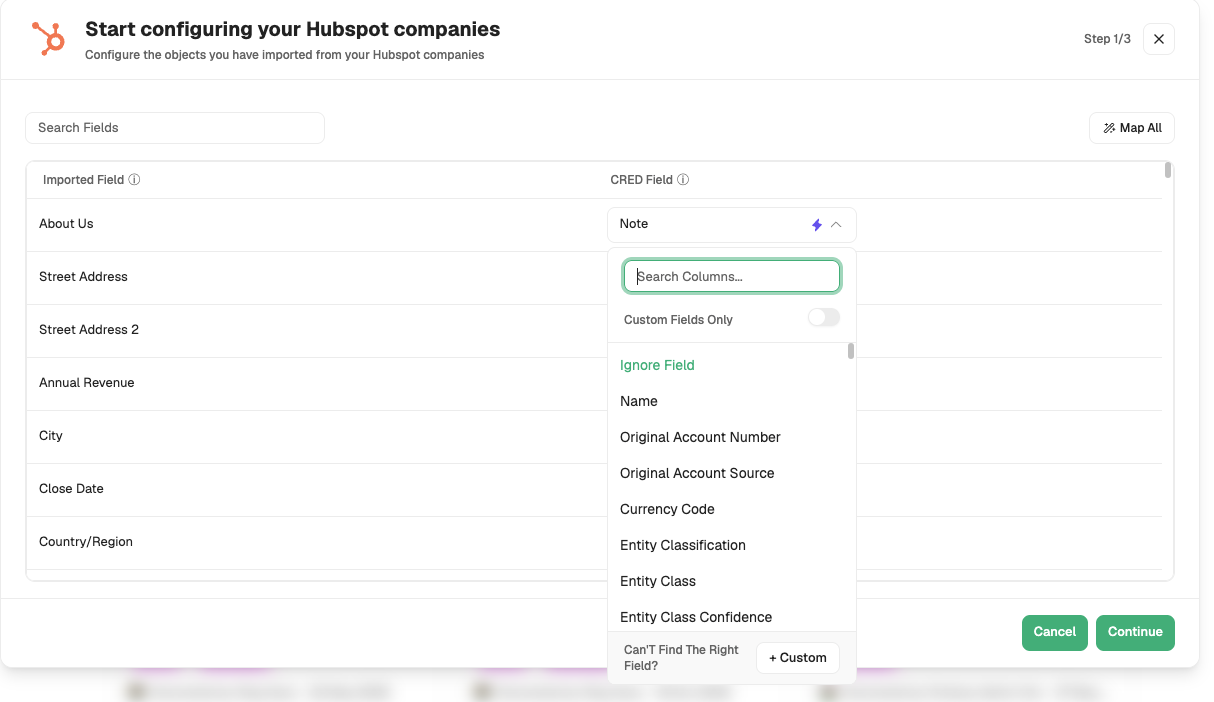
Field Mapping (Step 1/3) — Map HubSpot fields to CRED fields. Use + Custom to create new CRED fields. Use Ignore to skip a field.
Enrichment Settings (Step 2/3) — Set per-field update mode (see table below).
Create Rule & Credits (Step 3/3) — Set entity-level create rules and review credit estimates.
Sync Behaviour
Sync Schedule
Direction | Trigger | Timing |
|---|---|---|
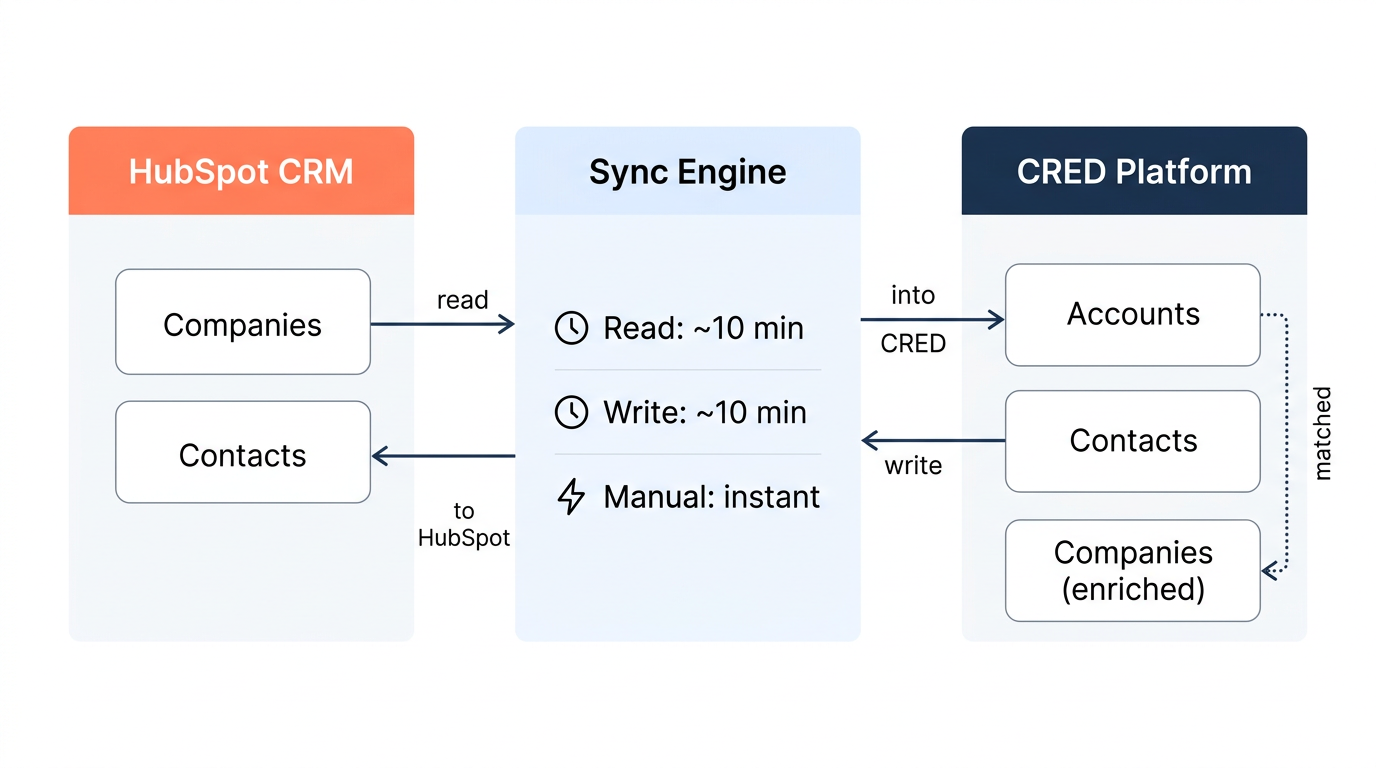
HubSpot → CRED (initial import) | Automatic on connect | Begins ~2–4 minutes after OAuth, runs tier by tier |
HubSpot → CRED (ongoing) | Manual — Sync from CRM button, or workflow action | No automatic recurring poll today |
CRED → HubSpot | Event-driven — on any in-app edit to a synced record | ~3-second delay, then queued to a background worker |
Manual Sync to CRM button | User action | Enqueues a background job; runs seconds later, not synchronously |
Note: Sync timings are subject to change. This page will always reflect current values.
CRED does not currently expose per-workspace or per-plan sync-frequency controls. If you need a specific automatic re-sync cadence, contact your CRED representative.
HubSpot webhooks are not currently used; the initial import is a poll-based read.
How Data Flows
Key Entity Relationships
Each HubSpot Company syncs 1:1 to a CRED Account (which stores the HubSpot ID and sync state).
CRED then matches the Account to a CRED Company — the enriched entity with financials, sponsorship deals, and audience data.
Every synced record carries an Account ID; a Company ID is only present once CRED has matched the account to a known company. Not every account will have a company match.
Each HubSpot Contact syncs 1:1 to a CRED Contact, which CRED then matches to a CRED Person — the same pattern as Account → Company.
Where Synced Data Appears in CRED
Synced contacts appear under People → My Contacts.
Synced accounts appear under Company → My Accounts.
Previous activity history for matched contacts is visible in the contact timeline.
Last activity timestamps are displayed in both CRED and HubSpot.
Manual Sync
Three ways to push data to HubSpot on demand:
Per record. Open the 3-dot menu on a company, contact, or opportunity row (or the record's sidebar), and choose Sync to HubSpot.
Selected records in bulk. Select rows in a list, then use the footer action-bar Export button (the label changes to Export All when nothing is selected). Its dropdown includes CSV, Excel, and — when HubSpot is connected — Sync to HubSpot.
Entire list. Use the Export All button in the list header. Same dropdown, including Sync to HubSpot.
Field Settings
For full field management documentation, see CRM Integration — Field Management.
Per-Field Update Modes
Mode | Behaviour |
Overwrite | Always replace the HubSpot value with the CRED value |
Null Value Only | Only populate if the HubSpot field is currently null/empty |
Off | Do not update this field |
Per-Entity Create Rules
Rule | Behaviour |
On | Always create a new record, even if a potential duplicate exists |
Manual | Only create when "Sync to CRM" is clicked and no match is found |
Off | Never create new records |
Required Fields
There are two levels of field requirements:
Required in CRM — the field is mandatory in HubSpot. If it's empty, HubSpot will reject the record on write.
Required in CRED — the field is marked as required within CRED's sync settings. The record will not sync until that field is populated, and the sync button will be disabled with a message indicating which fields are missing.
Is Exportable?
An admin-level toggle per field that controls whether the field data can be included in CSV exports. Use this to comply with internal data handling policies — fields marked as non-exportable will not appear in any exported file.
Read & Write Controls
Each mapped field has configurable read, update, and delete settings. To remove a field from syncing, unmap it in the Integration Wizard.
Sync Limits
Sync limits vary based on your selected CRED plan. Contact your CRED representative to understand the limits applicable to your workspace.
Layering CRED Sources on a Field (Source Priority)
For any custom field CRED creates during HubSpot import — or any field you configure afterwards — you can layer additional CRED data sources so the field falls back through a prioritized "waterfall." This lets you enrich HubSpot records directly with CRED's own catalog: for example, if a HubSpot company property is missing, fill it from the corresponding CRED Company field.
How to reach it
In the Integration Wizard, or via Imports → Create custom field → Source, open the custom field you want to configure.
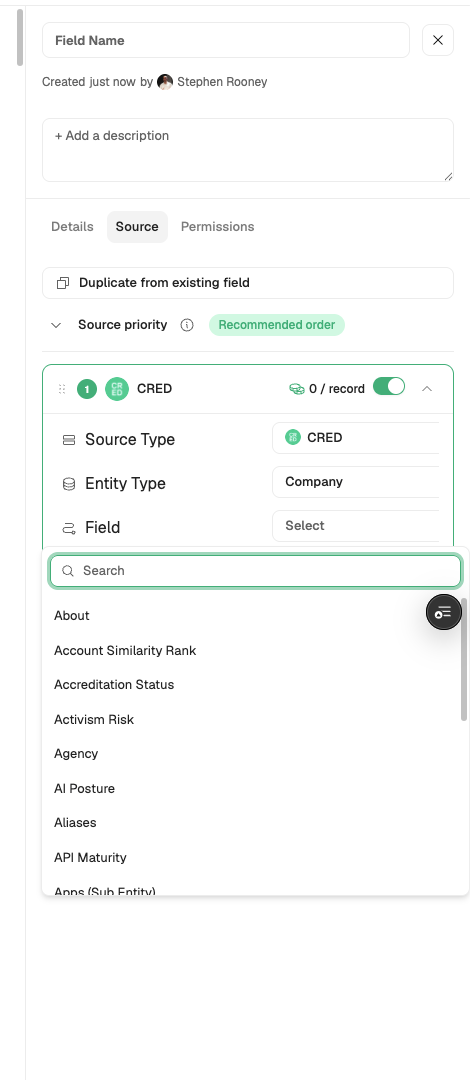
In the right-side settings panel, select the Source tab.
How the panel is organised
Source priority — the ordered list of sources CRED consults, top to bottom, when populating this field. The first source that returns data wins; CRED then stops walking the list.
Recommended order badge — appears when your current ordering matches CRED's recommended default for this field/entity combination. Reordering, disabling, or adding sources will clear the badge until the ordering matches the recommendation again.
Duplicate from existing field — copies the entire source configuration from another field you've already configured. Useful when the same waterfall applies to many fields.
Add source — appends a new source card to the bottom of the list.
Per-source toggle — enables or disables that source without deleting it. Disabled sources are skipped when the waterfall runs.
Drag handle / delete — reorder cards by dragging; remove one with the delete button.
Configuring a source
Each source is defined by three dropdowns:
Source Type — where the data comes from. Options include:
CRED — CRED's own enriched catalog
Internal Data — your workspace's uploaded or internally generated data
LLM — a large-language-model-derived value
User Input — a value the user is expected to enter manually
Calculation — a value computed from other fields
Entity Type — the CRED entity to pull from. The list is constrained by the parent field:
If the parent field is on an Account, Entity Type is Company.
If the parent field is on a Contact, Entity Type is Person.
Additional entities may appear when Source Type is Internal Data.
Matching & Deduplication
CRED automatically matches HubSpot companies to CRED companies based on domain and other identifiers
Matching statistics (matched vs total) are visible in the Integration Wizard and under My Account → Settings → Matching
Click on a row to adjust which CRED Company an imported account is matched to
Monitor remaining (unmatched) accounts and manually find matching entries
HubSpot deduplication is domain-based — HubSpot uses the company domain as its primary deduplication key
CRED flags potential duplicates for review rather than auto-merging
Go-Live Checklist
Before rolling the integration out to your team:
☐ Verify the authorizing HubSpot user has the correct permissions and privacy settings
☐ Ensure all essential fields are mapped and update modes are set correctly
☐ Confirm required fields are populated for records you intend to sync
☐ Test sync functionality with a sample set of records in both directions
☐ Validate that reporting data is accurate post-sync
☐ Train sales and support teams on the new integration workflow (manual sync, matching, troubleshooting)
☐ Review Is Exportable? settings for sensitive fields
☐ For any custom fields where fallback behaviour matters, confirm the Source Priority list is set the way you want
Disconnecting HubSpot
To disable or disconnect the integration:
Go to My Account → Workspace Integrations
Find the HubSpot tile and click Settings
Click Disconnect to revoke the connection
Disconnecting stops all syncing. Existing records in both systems are retained but will no longer update. Re-connecting will require a new OAuth flow and a fresh initial sync.
Troubleshooting
Sync errors
Check the sync issues sidebar on the account record for field-level error codes and messages.
Common issues:
Record not syncing. Check that required fields are populated. Verify the HubSpot connection is active under Workspace Integrations.
Duplicate records. Use the Matching tab to reconcile. Set create rules to Manual or Off to prevent automatic creation.
Permission errors. Confirm the authorizing HubSpot user has the necessary access. Re-authenticate if scopes were changed on the HubSpot side.
Field not populating as expected. Open the field's Source tab and confirm the Source Priority list has an enabled source that can supply a value for this record.
Filing a support ticket
When reporting a sync issue, include:
Screenshot of the affected record (both CRED and HubSpot)
Which fields are mapped and their update modes
Expected vs actual behaviour
Steps to reproduce
Error details from the sync issues sidebar
Related Articles
CRM Integration — General setup, field management, data matching, syncing rules
CRM Integration Technical Process - Salesforce — Salesforce-specific technical process
Integrations and Import — Full integrations collection